Online Seedvr

Workflow guide

Build a seedvr2 comfyui workflow with clear checks

A seedvr2 comfyui setup puts the upscale process inside a node graph you can inspect and adjust. Start by confirming the node, model files, and available memory before processing a full video.

Seedvr video enhancement imagery

Connect and test the workflow step by step

ComfyUI graphs vary by custom-node package. Treat the package's own installation and example-workflow instructions as authoritative for its exact node names and connections.

Check the node and model requirements

Choose a SeedVR2-compatible ComfyUI implementation and read its repository instructions. Confirm the supported ComfyUI version, dependencies, model variant, and required file locations; a similarly named node does not guarantee that your weights will load.

Wire a small input through the graph

Load the implementation's example workflow if one is provided, then connect its prescribed input, model-loading, processing, and output nodes. For video, verify how that workflow handles frames and reassembly rather than assuming an image-only graph accepts a clip directly.

Run a short test and inspect it

Test a few representative frames at the settings documented for your node. In a seedvr2 comfyui graph, inspect motion edges, faces, text, and fine patterns before increasing the workload; a clean still frame alone cannot establish temporal consistency.

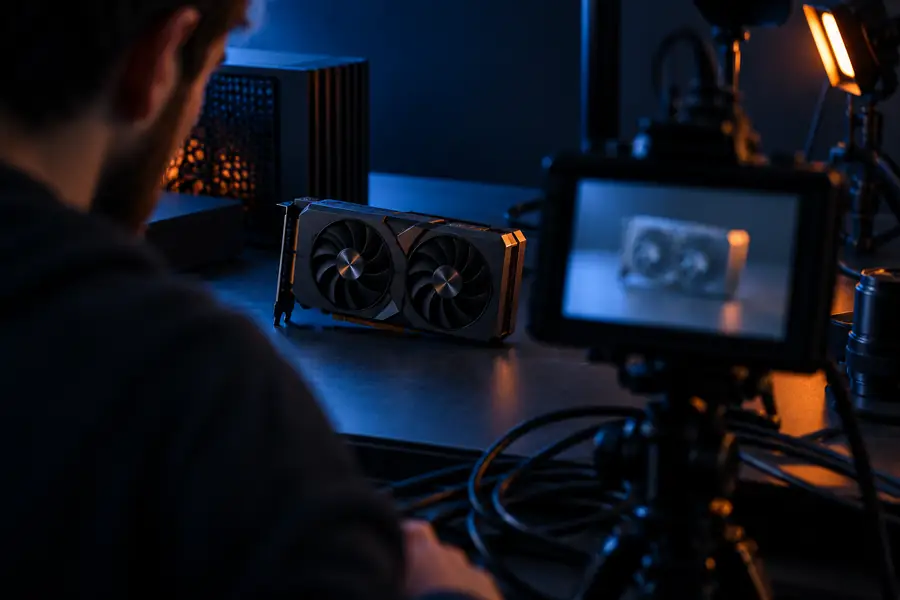
Look beyond a sharper still frame

Compare the same scene at the same viewing size. Pay particular attention to lettering, object boundaries, and areas that were soft in the source.

Illustrative softer scene

Soft camera and product scene illustrating a lower-detail starting image
Sharper camera and product scene illustrating detail to inspect after enhancement
Illustrative sharper scene

These site images illustrate a visual comparison; they are not verified output from a particular SeedVR2 node or setting.

Local graph or hosted model route?

The right route depends on whether you need direct control over a ComfyUI graph or want to evaluate a hosted SeedVR2 listing without configuring local nodes.

Local ComfyUI workflow Hosted model listing
1

Starting point

Local ComfyUI workflow

Install a compatible custom-node implementation and obtain the model files it specifies.

Hosted model listing

Open the linked model listing and check its current input instructions.

2

Graph control

Local ComfyUI workflow

Inspect and edit connections, provided the installed implementation exposes the settings you need.

Hosted model listing

Use the controls the hosted interface actually offers; a ComfyUI graph is not implied.

3

Compute

Local ComfyUI workflow

Processing depends on your local GPU, available memory, and workflow configuration.

Hosted model listing

Processing runs through the provider's infrastructure, subject to its current terms and limits.

4

Model compatibility

Local ComfyUI workflow

You must match node code, dependencies, and weights to the implementation's documentation.

Hosted model listing

Check which model the listing names rather than assuming it matches your local files.

5

Video handling

Local ComfyUI workflow

Frame loading and reassembly depend on the graph and any supporting nodes you install.

Hosted model listing

Check accepted inputs and returned outputs on the listing before planning a clip workflow.

6

Troubleshooting

Local ComfyUI workflow

Inspect node errors and adjust the graph or workload yourself.

Hosted model listing

Use the provider's available documentation and interface feedback; local node errors do not apply.

Limits and edges to plan around

Neither route guarantees a clean result from every source. Test the material you actually intend to enhance.

A model name is not an install guide

SeedVR2 weights alone do not specify a working ComfyUI graph. Custom nodes can have different dependencies, supported models, and file paths.

WorkaroundFollow the selected implementation's documentation and begin with its maintained example workflow, if available.

GPU memory is a practical constraint

A local run may fail or slow down when a model and its intermediate data exceed available memory. Requirements vary with the implementation and workload.

WorkaroundTest a short, smaller input first and use documented memory-saving options where the chosen node supports them.

Upscaling cannot recover a known original

SeedVR2 may produce plausible detail, but severe blur, compression, or missing text leaves information the source cannot verify.

WorkaroundKeep the original and review important faces, labels, and patterns against it at matching playback points.

A hosted link is not a ComfyUI extension

Seedvr's linked model listing does not install nodes or import a local graph for you.

WorkaroundChoose a documented local implementation when graph editing is essential; check the hosted listing separately when comparing access routes.

Prefer to inspect a hosted route?

Explore the SeedVR2 model listing

If maintaining a local ComfyUI setup is not your priority, follow Seedvr's link to the hosted listing. Check its current inputs, outputs, terms, and available controls there before choosing a workflow.

  • No local node installation through this link
  • Confirm supported inputs on the destination
  • Keep your source for side-by-side review

ComfyUI workflow questions

Find a maintained SeedVR2-compatible custom-node implementation and follow its installation instructions, including the stated model files and dependencies. Load its example graph if one is available, then test a small input before attempting a longer clip.

Do not assume that a standard ComfyUI installation includes the SeedVR2 nodes or model weights you need. Check the specific implementation's repository for installation steps and supported versions.

An image graph processes the input its nodes accept; it does not automatically decode a clip or assemble processed frames into a video. Check the chosen workflow's frame-loading, ordering, and reassembly steps, then review motion across consecutive frames.

First confirm that the error comes from memory rather than missing files or incompatible nodes. Try a smaller test input and consult your implementation's documented memory options; do not assume any particular GPU capacity guarantees success.

No. A hosted listing and a local ComfyUI graph are different access routes, with different controls and troubleshooting steps. Review the listing's current capabilities rather than expecting it to open or reproduce your local graph.

Open upscaler
Open upscaler