Start with existing frames
The process begins with a video or sequence of images. Resolution, compression, motion blur, and missing detail in those frames all affect what an upscaler has to work with.
SeedVR explained
If you are asking what is seedvr, the short answer is that SeedVR is a video enhancement model used to upscale existing footage. It aims to make low-resolution frames look clearer, but the quality of the source still matters.

Related guides
Once the definition is clear, the useful question is how you want to access SeedVR or what kind of footage you plan to enhance.
See what to check when using a browser-based route rather than setting up a local workflow.
Follow a practical sequence for choosing a source clip and reviewing the enhanced result.
Explore the considerations involved in building a local node-based workflow.
How it works
Think of SeedVR as a source-to-output workflow, not a way to recover an untouched original recording.
The process begins with a video or sequence of images. Resolution, compression, motion blur, and missing detail in those frames all affect what an upscaler has to work with.
SeedVR uses a learned model to produce enhanced frames. Texture that appears in the result is an estimate informed by the source, not proof that every fine detail was present in the recording.
Judge the output as video, not only as a sharp still. Faces, text, thin lines, and fast motion deserve particular attention because an appealing frame can still sit beside inconsistent ones.
Limits and edges
A higher-resolution output does not automatically mean a more faithful image. Keep these boundaries in mind before relying on the result.
SeedVR cannot verify the exact appearance of a face, sign, or object that was never clearly recorded. Plausible-looking detail may differ from reality.
WorkaroundCompare important details against the original and keep the source file.
Heavy motion blur, blocked highlights, and strong compression can leave too little usable information for a convincing enhancement.
WorkaroundTest a representative short clip before processing longer footage.
An individual frame can look improved while texture changes or edges flicker during playback. A still-image comparison alone will not reveal that.
WorkaroundWatch the exported sequence at normal speed and inspect difficult moments frame by frame.
Reading the result
This comparison describes what changes in an upscaling workflow; it is not a promise that every clip will improve in the same way.
Original footage
The recorded source and reference for fidelity.
SeedVR-enhanced footage
A processed interpretation intended to appear clearer.
Original footage
Limited to the source dimensions.
SeedVR-enhanced footage
May be produced at larger dimensions, depending on the workflow.
Original footage
Can appear soft or compressed.
SeedVR-enhanced footage
May look more defined, though some texture is estimated.
Original footage
Shows the motion captured in the source.
SeedVR-enhanced footage
Needs playback review for changing detail or flicker.
Original footage
May be hard to read or identify.
SeedVR-enhanced footage
May look clearer without becoming reliably accurate.
Original footage
Checking what the camera actually recorded.
SeedVR-enhanced footage
Creating a more presentable viewing copy when the result holds up.
Visual example
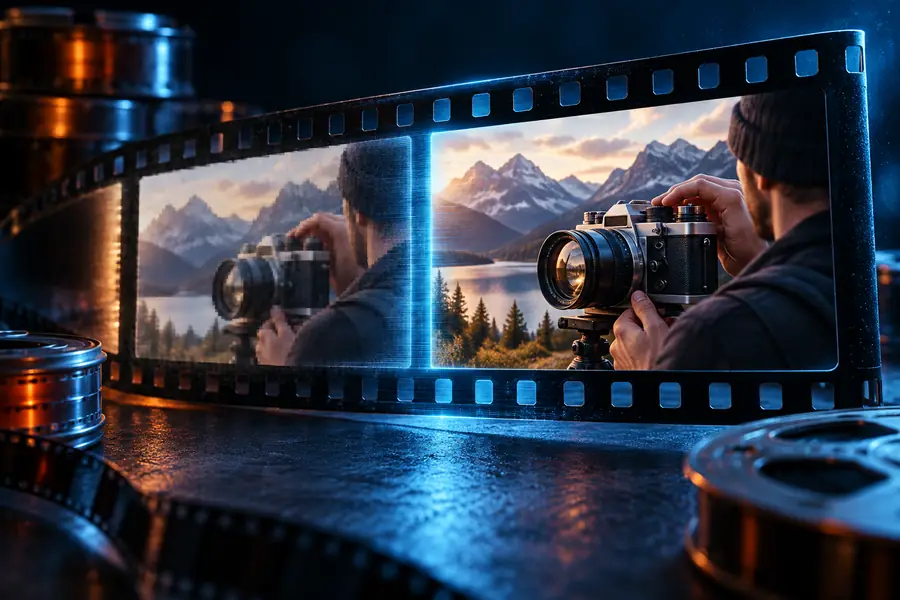
Illustrative comparison, not a verified SeedVR output or a guarantee of results on your footage.
Next step
Choose a short clip with both quiet and moving scenes, then compare the result against your original at normal playback speed. The linked destination is a separate SeedVR2 upscaling route; check its current input requirements and terms there before submitting footage.
Common questions
SeedVR refers to a model for enhancing and upscaling existing visual footage. It processes a source rather than recording a new scene, so the input and the model's interpretation both influence the result.
In the context of this guide, SeedVR is an upscaler and enhancer for footage you already have. It is not a substitute for filming missing events or verifying details that the camera failed to capture.
No. An enhanced frame can look more detailed, but newly visible texture is not necessarily a faithful reconstruction of the original scene. Treat the unprocessed file as the reference when accuracy matters.
Use a short clip that includes both still areas and motion, preferably with details you can recognize in the source. Review the result during playback, then pause on faces, text, and fine edges to see where enhancement helps or introduces artifacts.